
Simulating Index Card "Stacks" with Personal Knowbase
While using Personal Knowbase, at times you may want to keep track of an arbitrary set of working articles. For example, you may want to save the results of a Find or Build Query operation that you want to use as a starting point for some other work. Or perhaps they're a group of articles that you've imported that require further processing. These articles may not already share any keywords, but you want to do more work with them.
If you view your Personal Knowbase articles as index cards, the idea is to sort out a "stack" of index cards that you want to continue to work with.
What the Titles Column Displays
The Index Window's Titles list is determined by the results of a current action, usually either from the keywords currently in the Selected column or the results of a Find or Build Query command (from the Edit menu).
You can add or subtract keywords from the Selected column to change the Titles list on the fly according to which articles those keywords are assigned to.
But the Find and Build Query commands yield final results that can't be changed on the fly. Doing any work on the articles which are listed in the Titles column may change the actual list of articles shown, for example if you change keywords that affect your query. This could cause you to lose your original set that you want to work with.
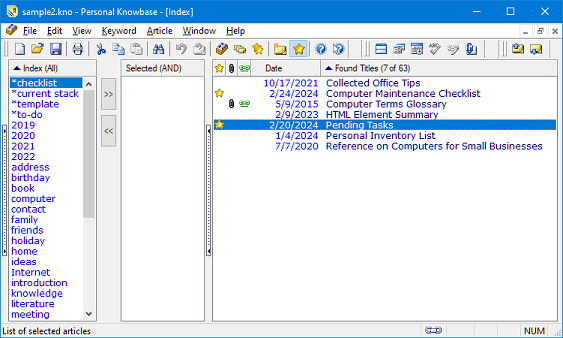
So to use these Find or Build Query results for future work, you need to keep track of them. Some software refers to such an arbitrary group of notes as a "card stack". It's like a current stack of index cards that you've sorted out for further work. Personal Knowbase does not have a "stack" feature per se. But you can simulate the "stack" concept using bookmarks or keywords.
Using Bookmarks to Simulate Stacks
If you are not using the bookmark feature for another purpose, you can use bookmarks to define a "card stack" of articles that you can add and subtract from arbitrarily. For example, you could run the Find command, then bookmark the resulting articles to add or subtract them from your current "stack".
To bookmark all articles currently in the Titles column as the results of a Find operation, click on that column, then press Ctrl+a to Select All, and then press Ctrl+t to bookmark all highlighted articles.
You could bookmark an article to "keep it in the stack" and un-bookmark it to "discard it from the stack". Then use the Show Bookmarked Titles command (Article Menu) to view the current "stack". When you are done with your current task, use the Clear Bookmarked Title List command (Article Menu) to remove all bookmarks.
Using Keywords to Simulate Stacks
If you already use bookmarks for another purpose, you could get the same effect by creating a temporary keyword (for example, a keyword maybe called working set or *current stack) that you could assign and unassign from articles to add or subtract them from a "card stack" represented by this keyword. Also, whereas using bookmarks limits you to a single "stack", you can create multiple keywords to represent as many "stacks" as you need.
You can assign or unassign a keyword quickly from multiple articles by highlighting the articles in the Index Window and using the Change Keywords for Article command (Keyword menu). You can also assign a keyword to multiple articles by dragging the keyword from the Index column to the Titles column.

To assign your *current stack keyword to a set of imported articles, enter this keyword when the Import function prompts you to specify Keywords for Imported Articles.
You can delete this temporary *current stack keyword when you're done with the corresponding "stack". Deleting a keyword from the Index Window removes that keyword from every article that it is assigned to.
Tip about dates: If you normally have the Automatically Update Article Dates setting turned on (from File Properties from the File menu) for this data file, note that assigning or unassigning keywords in the Index Window will update the article dates. If you want to prevent them from auto-updating, temporarily turn off this setting while you're manipulating your "stacks".
Whether you use bookmarks or keywords, you can then specify this set as an operand for the Build Query command or as the Range for a Find, Print, or Export operation. Or you can simply list them in the Index Window to access and work with them.
This is just one way of managing a set of working articles as an "index card stack". Get creative in your use of temporary keywords. Take advantage of how easy it is to create new keywords on the fly and delete them when you're done.
Search Site
Recent Posts
About
Personal Knowbase is a note management program for Windows. Organize free-form text information using keywords.
To see if Personal Knowbase is right for you, please download a fully-functional 30-day software trial.
Tags
attachments backup clipboard dates documentation education export files find formatting getting started import information management installation interface keywords network PK Reader portability print query registration reports research security settings site info small business support time management upgrade Windows writers
