PK Tip: Typing Smart Quotes in the Article Window
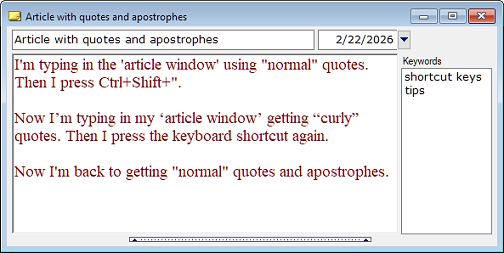
In Personal Knowbase, you can type smart quotes, also known as curly quotation marks, directly into an Article Window. You can toggle this feature by using the little-known keyboard shortcut Ctrl+Shift+". In addition to double-quote characters, this shortcut also affects single-quote characters which are also used for apostrophes.
To start typing smart quotes:
- Press Ctrl+Shift+" on your keyboard.
After that, whenever you type the quote character ("), you get a smart (curly) double-quote instead of a straight quote. If you type the quote after a space, the smart quote will angle left-to-right (“). If you type the quote after a non-space character, the smart quote will angle right-to-left (”).
Also, whenever you type a single-quote (or apostrophe) character ('), you get a smart (curly) single-quote. This will also vary in angle depending on whether it’s after a space or not (‘ or ’).
To revert to getting regular straight quotes and apostrophes:
- Press Ctrl+Shift+" again.
Now whenever you type quote characters, they will be standard straight ones. Smart quote characters previously typed will remain smart quotes, so you can have both smart and straight quotes in your article.
Search Site
Recent Posts
About
Personal Knowbase is a note management program for Windows. Organize free-form text information using keywords.
To see if Personal Knowbase is right for you, please download a fully-functional 30-day software trial.
Tags
attachments backup clipboard dates documentation education export files find formatting getting started import information management installation interface keywords network PK Reader portability print query registration reports research security settings site info small business support time management upgrade Windows writers
